
Setup and Common data
This chapter explains the very limited exceptions to changes in the existing data model. These limited changes were necessary to build a robust solution that does not significantly impact your current workflows.
Setup module
Parameters
Open: Setup > General parameters > Parameter values (ADPVAL)
The parameters are in the TC chapter, INV group.
These parameters are linked to the EINV activity code:
EINVOICE - Electronic invoice
EINVPIHEXP - Purchase invoice exp. template
EINVSYNC- E-invoicing synchronization. Make sure this parameter is set to Yes to synchronize data with Sage Network.
EINVPIHIMP - Purchase invoice imp. template
EINVBISEXP - AP invoice export template
EINVBISIMP - AP invoice import template
EINVMAP - E-invoicing mapping code
EINVMAPIN - Inbound mapping code
EINVMET - E-invoicing method
EINVPRTPVI- E-invoicing preview destin.
EINVDBGMOD - Debogging mode: Do not activate in production.
These parameters depend on the SNAP activity code (Belgium and Germany:)
SNAPSTDSCP - AP Automation standard script
SNAPDUPCTL - AP automation duplicate ctrl
SNAPTHRRAT - AP automation threshold rate
Sequence numbers
Open: Setup > General parameters > Sequence number definition > Structures (GESANM)
Two sequence numbers are included with your solution.
SNAP - Sage Network invoices is used by AP Automation in the Process documents function when adding or generating documents.
SINV - can be used in the Get inbound invoices function when new records are created.
Import templates
Open: Setup > Usage > Imports/Exports > Imports/Exports templates (GESAOE)
Import and export templates are used throughout Sage X3. They can be easily configured, but be careful not to modify them.
These templates depend on the EINAP activity code:
EINVBISEXP - Export template AP invoice
EINVBISIMP - Import template AP invoice
EINVPIHEXP - Export for purchasing invoice
EINVPIHIMP - Import for purchasing invoice
These templates depend on the SN activity code:
SNCPY - Company sync model
SNBPC - Customer sync model
SNBPS - Supplier sync model
SNBPCCNT - Customer contact sync model
SNBPR - Business Partner sync model
SNCPYCNT - Company contact sync model
Destinations
Open: Setup > Destination > Destinations (GESAIM)
For PDF outputs for sales invoices, you need to ensure the following settings for the PDF_EINV print destination:
Output type should be Archiving.
Export format should be PDF.
Customer invoice type
Open: Setup > Sales > Document types > Invoice types
You need to associate each Sage X3 invoice type to the correct invoice type listed in Miscellaneous table 206.
Common invoice types are 380 (Commercial invoice) and 381 (Credit note).
Invoicing elements
Open: Setup > Sales > Invoicing elements (GESSFI)
The Discount and charge reason code to be used in the XML file is associated with the Invoicing elements. This code is controlled in Miscellaneous table 212.
Supplier invoice type
Open: Setup > Purchasing > Document types > Invoice types
You need to associate each Sage X3 invoice type to the correct invoice type listed in the Miscellaneous table 206.
Common invoice types are 380 (Commercial invoice) and 381 (Credit note).
Sites
Open: Setup > Organizational structure > Sites (GESFCY)
The following fields are used in the mapping process to determine the Sage X3 site:
- Site tax ID no. (CRN), 14-digit SIRET (CRN) in France
- Routing code
- Suffix
- Electronic address
- Email address
- Service code
Define the e-invoicing electronic addresses
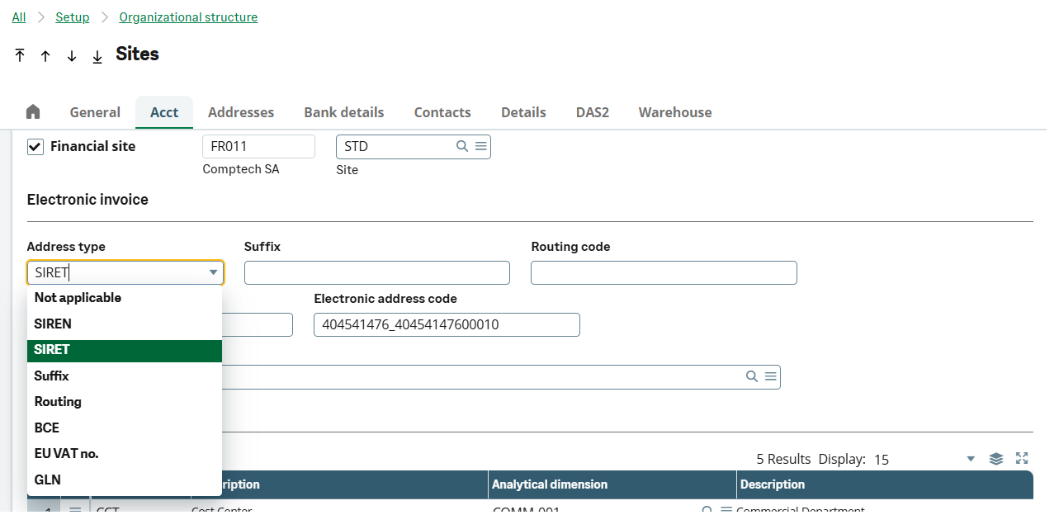
For each site, define the electronic addresses used to receive invoices. You can do this on the Acct tab, in the Electronic invoice block.
- For German companies: In the Email address field, enter the email address used for e-invoicing.
- For Belgian and French companies: Define the structure of the electronic address.
For Belgian companies:
- In the Address type field, select the identifier you want to use:
- BCE
- EU VAT n°
- GLN
- The Electronic address code is populated based on the selected address type.
For French companies:
Electronic addresses are made up of combinations of SIREN, SIRET, suffix, and routing codes.
- In the Address type field, select the identifier you want to use:
- SIREN
- SIRET
- Suffix
- Routing
- Enter the Suffix or Routing code if applicable.
- The Electronic address code is updated automatically depending on the selected address type.
- SIREN
- SIREN_SUFFIX
- SIREN_SIRET
- SIREN_ROUTINGCODE
Site e-invoicing electronic addresses are synchronized with Sage Network when you synchronize the company using the Data sync function with the SNCPY – Company sync model template.
Companies
Open: Setup > Organizational structure > Companies (GESCPY)
The following fields are used in the mapping process to determine the Sage X3 company:
- Subject to tax checkbox
- Company tax ID no., 9-digit SIREN (CRN) in France
- EU VAT no.
- Service ID
For French companies
On the Legal data screen, you need to select the VAT on debit checkbox to display the required legal information when printing invoices. The required text displays in the Legal mention field when the checkbox is selected.
Company e-invoicing electronic addresses are synchronized with Sage Network when you use the Data sync function with the SNCPY – Company sync model template.
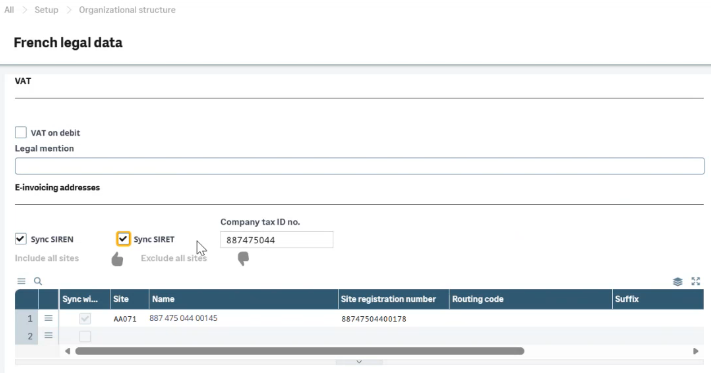
Before you start the synchronization process, define which electronic addresses to synchronize in the E-invoicing addresses block of the legal data:
- To synchronize electronic addresses that use the SIREN, select the Sync SIREN checkbox.
- To synchronize electronic addresses that use the SIRET, select the Sync SIRET checkbox.
- To synchronize electronic addresses that use suffixes or routing codes, do not select the Sync SIRET checkbox. Instead, select the relevant addresses in the grid.
Local menus
This list is for your information only. These local menus cannot be modified.
Chapter - Description
2076 - Document status
2128 - Generated document
2129 - Invoice status
2130 - Einvoicing mapping
2131 - Einvoicing status
2132 - Einvoicing partial matching
2134 - Life cycle invoice type
2135 - Life cycle internal status
2136 - Sync statuses
2137 - Operation Type
2138 - Package type
2139 - Step Name
7794 - E-invoicing messages
7795 - Mode
7796 - E-invoicing notes texts
7797 - Discount / Charges
7798 - AP Automation messages
7799 - Update/Initialize
Common data module
Miscellaneous tables
Open: Common data > Common data > Miscellaneous tables (FONADI).
Open: These tables do not update automatically.
| Table | Description | Type |
|---|---|---|
| 18 | Unit of measure UNECE | Changeable |
| 206 | Invoice type ( Code type de facture) | Not changeable |
| 207 | Business process type | Not changeable |
| 208 | VAT category (Code de catégory de TVA) | Not changeable |
| 209 | Exoneration code (Motif exonération) | Not changeable |
| 210 | BPs (Third parties types) | Not changeable |
| 211 | Payment means code (payment type) | Not changeable |
| 212 | Discount & charge reason code | Not changeable |
| 970 | Life cycle statuses | Not changeable |
| 971 | Refusal reasons | Not changeable |
| 972 | Requested actions | Not changeable |
Business partner
Open: Common data > BPs > Business partners (GESBPR)
Depending on the process, the following fields are used to determine the BP, to launch the e-invoicing process, or to design the route of the e-invoice:
On the Identity tab
-
Company name 1 (BPRNAM)
-
SIREN = 9- digit or SIRET = 14-digit (CRN) in France
-
EU VAT no. (EECNUM)
-
E-invoice type: The information entered in this field triggers the display of additional fields required for the electronic invoicing process. It can be updated in bulk using the BP e-invoice data update function (EINVBPRUPD) under Common data > BPs > Utilities.
-
Service code: This code can be used for B2G (Business-to-Government) transactions or to construct the electronic address.
-
Routing code and Suffix: These are used in combination with the tax IDs to specify the destination for the electronic invoice.
-
Electronic address code: This is constructed using the tax ID, routing code, and suffix.
-
Electronic invoice type: This information begins the e-invoicing process.
-
E-invoicing mapping code: This information links the BP to an XML format to be used.
Define the e-invoicing electronic addresses
For each business partner, define the electronic addresses used to receive invoices from suppliers and send invoices to customers. You can do this on the Identity tab, in the Electronic invoice block.
- For German companies: In the Email address field, enter the email address used for e-invoicing.
- For Belgian and French companies: Define the structure of the electronic address.
For Belgian companies:
- In the Address type field, select the identifier you want to use:
- BCE
- EU VAT n°
- GLN
- Enter the Electronic address code based on the selected address type.
For French companies:
Electronic addresses are made up of combinations of SIREN, SIRET, suffix, and routing codes.
- In the Address type field, select the identifier you want to use:
- SIREN
- SIRET
- Suffix
- Routing
- Enter the Suffix or Routing code if applicable.
- Enter the Electronic address code based on the selected address type.
- SIREN
- SIREN_SUFFIX
- SIREN_SIRET
- SIREN_ROUTINGCODE
BPs e-invoicing electronic addresses are synchronized withSage Network when you synchronize the customers and suppliers using the Data sync function with the SNBPC - Customer sync model and SNBPS - Supplier sync model templates.
Reminder for addresses and identifiers
| Address type | Description | Example | Field length |
|---|---|---|---|
| SIREN | SIREN The 9-digit unique identifier assigned to a company in France. It remains the same throughout the company’s existence. 552100554 9 | 552100554 | 9 |
| SIRET | Combines the 9-digit SIREN and the 14-digit SIRET establishment identifier, separated by an underscore. | 552100554_55210055400013 | 25 |
| Suffix | Combines the 9-digit SIREN and an alphanumeric suffix, separated by an underscore. The suffix can contain up to 100 characters and identifies a non-geographical unit, such as a department. It is not an official code and is used for internal routing. | 123456789_SUFFIX | 110 |
| Routing | Combines the 9-digit SIREN, the 14-digit SIRET establishment identifier, and an alphanumeric routing code, separated by underscores. The routing code can contain up to 100 characters and identifies a department or service within an establishment. It is not an official code and is used for internal routing. | 123456789_12345678900001_CODEROUTAGE | 125 |
Customers
Open: Common data > BPs > Customers (GESBPC)
The same information entered in the BPs function (GESBPR) record is used to manage outgoing electronic invoices.
Supplier
Open: Common data > BPs > Suppliers (GESBPS)
The module, Purchasing or A/P-A/R accounting, where to create the invoice transaction defaults from the supplier.
If you choose Manual, the status of the record in the temporary storage table is Incomplete mapping and you need to manually select the destination module.
When generating the supplier invoice, the account used to initialize the invoice line defaults from the supplier accounting code, line 17 (Purchasing).
BP e-invoice data update
Open: Common data > BPs > Utilities > BP e-invoice data update (EINVBPRUPD)
Use this function to update the Electronic invoice type field setting in the header for the BP record and related customer or supplier record.
You can also use this function to update the Electronic invoice type at the BP exception level for existing BP/company exceptions.
Currency
Open: Common data > Common tables > Currencies (GESTCU)
The ISO code (ISOCOD) is used to map the currency in the XML file.
Units of measure
Open: Common data > Common tables > Units of measure (GESTUN)
The UNECE code is used to map the unit of measure in the XML. It is controlled by Miscellaneous table 18, Unit.
Tax rates
Open: Common data > Common tables > Taxes > Tax rates (GESTVT)
Tax rates need to be updated to populate mandatory information in the XML files:
- Tax code: The list of allowed values are in Miscellaneous table 208.
- Exemption reason: If there is an exemption, the list of allowed values are in Miscellaneous table 209.
- Charge reason code: The list of authorized values are in Miscellaneous table 212. This code is used to identify parafiscal taxes in the XML file. This field is not active for VAT taxes.
Payment methods
Open: Common data > BP tables > Payment methods (GESTAM)
The payment method type code in the XML file is associated with the payment method. The list of authorized values are in Miscellaneous table 211.
This 211 also manages bank details in the XML file. For the relevant payment methods, the outgoing XML feed includes the default bank details associated with the issuing website, or company if applicable.
Entered bank details or e-invoices could be rejected if they include a payment method requiring bank details.